 Index
IndexThe guide
Index's features and how they work.
- Spaces and groups
- Hot swapping
- Favorites and Other tabs
- The side panel
- Search and shortcuts
- The tab switcher
- Sleeping tabs
- Bring in what you have
- Let an AI set it up
- Export, import and backup
- Themes
- Rewind
- Sync, storage and privacy
Spaces and groups.
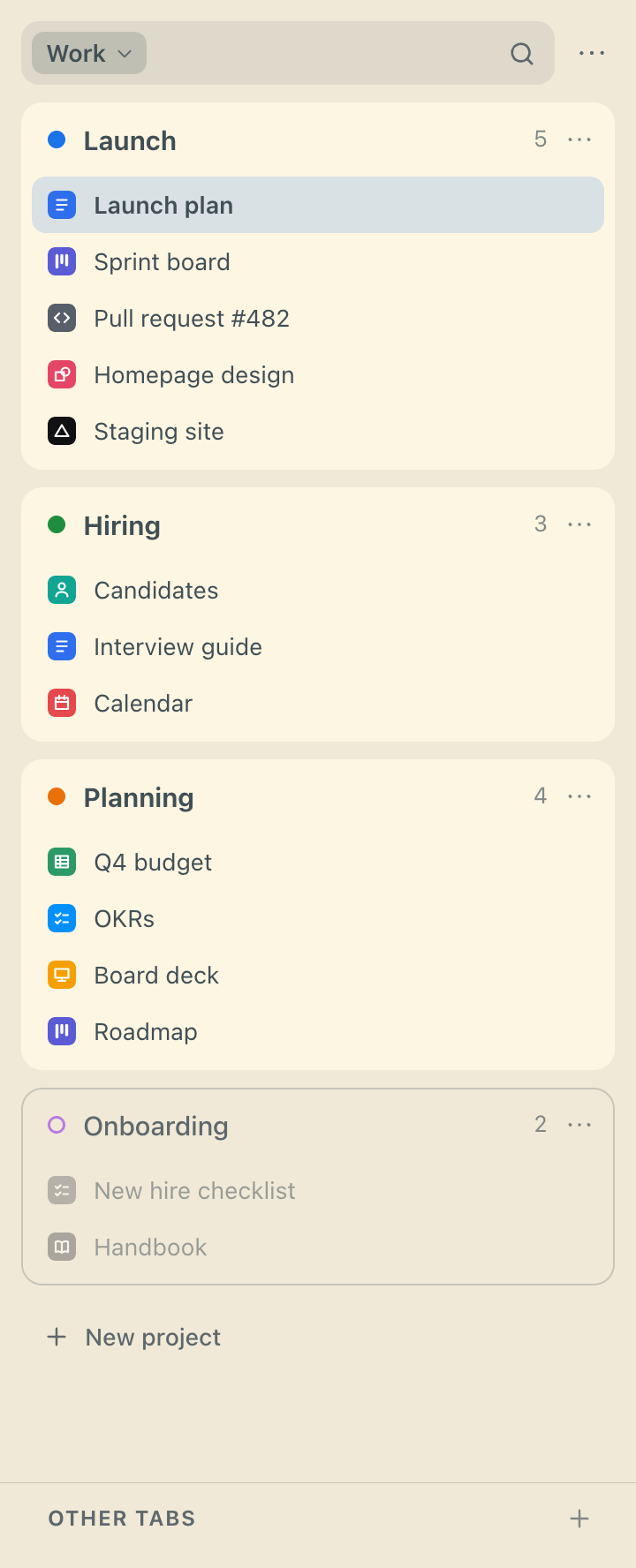
A space is a part of your life: work, home, the side project. It holds groups. A Chrome window shows one space at a time, and switching spaces puts one set of tab groups away and brings another back.
A group is a tab group that remembers: a set of saved links with a name and a color. Turned on, it is a Chrome tab group in the window, named and colored like the group, with a tab for each saved link. Turned off, the tab group is put away and the links stay saved. Click a group's name to turn it on or off.
A group's tab group can also hold tabs that are not saved in it. A tab you open while working in a group lands in its tab group, but it is not saved until you ask. So the panel shows three kinds of row in a group: saved links whose tab is open, saved links whose tab is closed, and open tabs that are not saved yet. Save tab turns one of those into a saved link.
Our advice: stop keeping track of tabs and bookmarks, and keep everything in spaces and groups. Open a group when you need it, turn it off when you are done, and its links wait for next time. Turn on Chrome's vertical tabs and collapse the tab strip, and Chrome's own interface falls away: the side panel becomes the browser.

Hot swapping.
Switching in Index is a hot swap, whether you switch a group or a whole space. Turn a group off, or switch to another space, and the tabs leave the tab strip, but they don't close: Index moves them, still loaded, into a hidden window you never see. Turn the group on, or switch back, and they are in the strip again as you left them, every one, with the page, the scroll position and anything half-typed intact. Nothing reloads, nothing signs in again, nothing waits on the network. It's the difference between putting work down and tearing it down. Tabs left out of sight a long while go to sleep, so Chrome stays fast.
The links you save in a group are the part that lasts: the pages it always starts from, synced to your other computers, there even when the tabs are gone.
Nothing you do in Chrome changes what is saved. Closing a tab leaves its link, shown as closed. Browsing a tab to another page leaves the link as it was; the row shows ↩ to say the tab has moved on, and offers Go back and Save current page. Where the tab got to is noted on that computer, so a link whose tab has closed opens again where you left it, until Go back; the closed row carries a small mark to say so. Dragging tabs or groups, pinning, renaming or recoloring a group change nothing saved. What is saved changes only through Index's own actions, an import, a Rewind restore, or changes synced from another computer.
After a restart, Index recognizes a restored window's space by the names of its tab groups and picks up where it was.
Favorites and Other tabs.
Favorites are up to eight pages you want in every space: mail, calendar, chat. They sit in a strip at the top of the panel, whatever space is showing. A favorite opens as a Chrome pinned tab. If its tab is already open in another window, a click brings it over rather than opening a second one. The tab is pinned because it is a favorite, so Index looks after the pin: Close tab closes it in this window and the favorite stays; Delete closes it in every window; Remove from favorites unpins it everywhere and leaves it open among the window's other tabs.
Other tabs, at the foot of the panel, lists the window's tabs that are in no group: plain tabs, pinned tabs that are not favorites, and Chrome's own tab groups. They are shown, never saved. Any of them can be moved into a group, and a group can be made from a Chrome tab group in a click.

The side panel.
The panel is Index's home, opened from the toolbar icon or its shortcut. It opens with the cursor in its search field. From top to bottom: the favorites strip, the space with its search field, the space's groups with their links, and Other tabs. Everything is done from a menu, under a thing's … button or a right-click on it, or by drag and drop.
- Spaces: new, rename, delete, reorder; switch the window to one; bring a space that is open in another window here, or go to its window; sleep its tabs; clear its unsaved tabs; add from bookmarks. The space's menu is a right-click on its name in the search field.
- Groups: new, ticking the tabs it should start with; rename, recolor, delete, reorder; turn on or off; move to another space; move the current tab here; add from bookmarks; clear its unsaved tabs; sleep its tabs.
- Links: open; rename, where an empty name hands the title back to the page; move to favorites; move out of the group; delete; sleep its tab; close its tab; go back or save current page after the tab moves on.
- Favorites: add from any tab or link; rename; move into a group; reorder; close its tab; sleep its tab; remove, which unpins its tabs and leaves them open, or drag the tile down among Other tabs for the same; delete, which closes its tabs; go back or save current page after its tab moves on.
- Other tabs: sleep its tabs; save them as a group; close all.
- The … menu: Rewind and Sleeping tabs; Add from bookmarks, Import and Export; Themes and Change keyboard shortcut; and at its foot, a gauge of how much synced storage is used.
A new install opens a welcome page in three steps: what the sidebar is, what each part of it is, and search. Its last button starts Index.
Search and shortcuts.
Search reaches anything in a few letters: any group, space, link or open tab, and any action Index can take. It is at the top of the panel, and it opens over any web page with Ctrl Shift P (⌘ Shift P on a Mac). Before anything is typed it lists the spaces and the actions, each with a key. Names match on scattered letters in order; addresses need the letters together. The actions start with what can be done where you are: this window's space, the current tab's group, and the tab itself. Everything the panel can do is here too.
Over a page, search is Index's own page in a frame. It reads nothing from the page beneath it, and it is removed when it closes.
New tab outside groups, on Alt T, opens a tab that joins no group.
The shortcuts
- Search: Ctrl Shift P, on a Mac ⌘ Shift P
- Show or hide the side panel: Ctrl Shift O, on a Mac ⌘ Shift O
- New tab outside groups: Alt T
- The tab switcher: Alt Q
All four can be changed at chrome://extensions/shortcuts, which the … menu opens.

The tab switcher.
Index moves tabs out of sight all the time: a group you turn off, a space you switch away from. That would be a problem if the tab you were on a moment ago went out of sight with them. The tab switcher is why it doesn't. Press Alt Q and a row appears over the page, like Alt-Tab or Command-Tab: the tabs you were on most recently, newest first, each as its site's icon. The row is drawn from every window, every space and every group, including the ones that are hidden right now.
A tap goes back to the tab you left, and another tap comes back. With Alt held, pressing again steps right, with Shift steps left, and letting go of Alt goes to the chosen tab. Arrows, Enter, Escape and clicks work too.
Going to a tab brings back whatever it needs. If its space is hidden, that space comes to this window. If its group is turned off, the group is turned on. If it was a saved link whose tab has closed, the link is opened again. The tab you were on a moment ago is always one tap away, whatever Index has done with it since.

Sleeping tabs.
Keep every tab, and Chrome stays fast. A tab you have put out of sight goes to sleep: Chrome unloads the page, and the tab stays where it is, in its group, with its title and icon. Click it and it's back. Nothing is closed, and the link stays saved.
Auto sleep. Hidden tabs, in a space that is not on screen or a group turned off, go to sleep after a while: an hour, or the delay you choose. Only time you are at the computer counts, so nothing goes to sleep over lunch or overnight. The tabs you used most recently stay awake, thirty of them unless you choose another number, and so do tabs playing sound. The space on screen is never touched.
By hand. Sleep tab in a link's or a favorite's menu; Sleep tabs in a group's, the space's or Other tabs'. In search, Sleep hidden tabs puts everything out of sight to sleep. If the tab in front is one of them, Index steps back to the tab before it first.
In the panel, a sleeping row wears a small moon.

The Sleeping Tabs page
Open it from the panel's … menu, or from search with s. At the top are the switch for auto sleep, its delay, and how many recent tabs stay awake. Under them, four blocks: what is asleep now, and how many tabs went to sleep and woke up in the last 24 hours, 7 days and 28 days. Then two tables. Soon lists the hidden tabs about to go to sleep, each with its countdown. Asleep lists the tabs asleep, with who put each to sleep, you or Index, and when; click one to go to it. At the foot is the count since Index was installed.

Bring in what you have.
Index makes it easy to turn what you already have into groups and spaces.
- Tab groups. Each of the window's Chrome tab groups is listed under Other tabs and becomes a group when asked. A space with no groups offers all of them at once.
- Pinned tabs are offered as favorites.
- Bookmarks. Add from bookmarks, in the … menu, the space's or a group's, shows your bookmark folders. A folder becomes a group; a folder of folders becomes a space; bookmarks can be ticked into an existing group. Chrome asks for the bookmarks permission the first time. Index only reads bookmarks: it never creates, moves or deletes one.


Let an AI set it up.
Hand ChatGPT or Claude your bookmarks or browsing history, with this prompt. It reads Index's import and export file format from this site, and you import what comes back with Import in the … menu.
Read https://www.mhb.software/idx/import-format/ and make me an Index import file from what I've attached. Sort everything into spaces, and within each space put related links together in groups.
Chrome's bookmarks export, from the bookmark manager, is the easiest thing to attach.
Export, import and backup.
Export, in the … menu, writes one JSON file: the spaces, their groups, each group's links, and the favorites. It is your backup, and the way to carry everything to another profile or computer. It is plain JSON, so it is also the way to edit everything in bulk, by hand, with a script, or with an AI.
Import reads the same file, in two modes. Add to what's here adds every space and group in the file as new. Replace everything makes the file the whole truth: anything not in it is deleted, and a group whose id matches is updated in place, keeping its tab group. Importing never turns a group on; open tab groups are left as they are.
The format, documented, with a JSON Schema.
Themes.
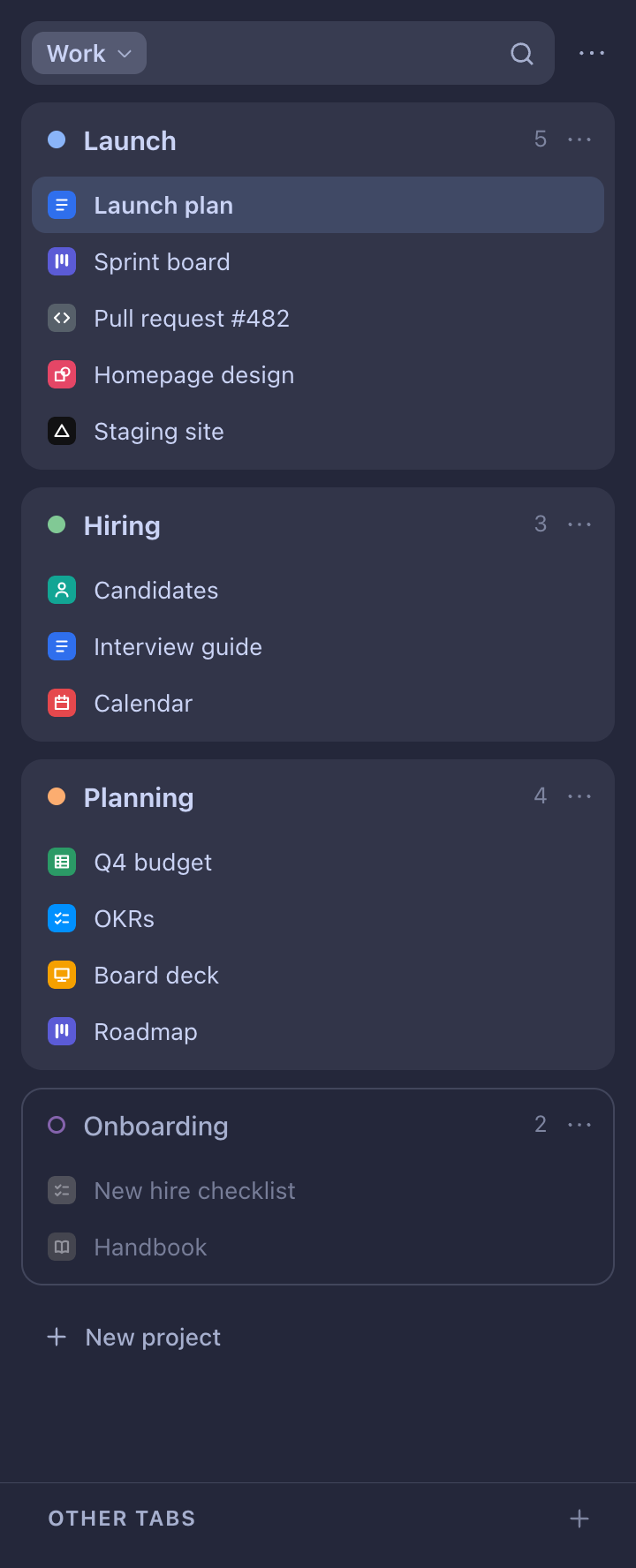
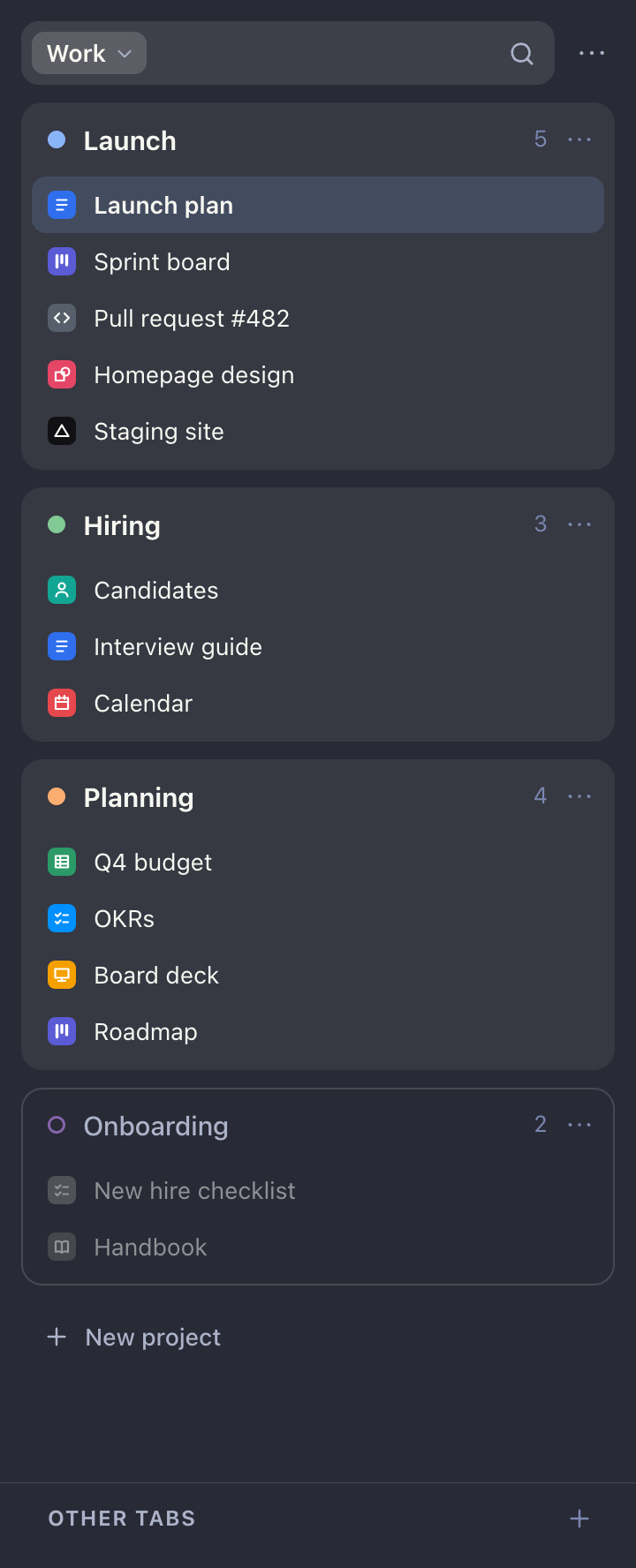
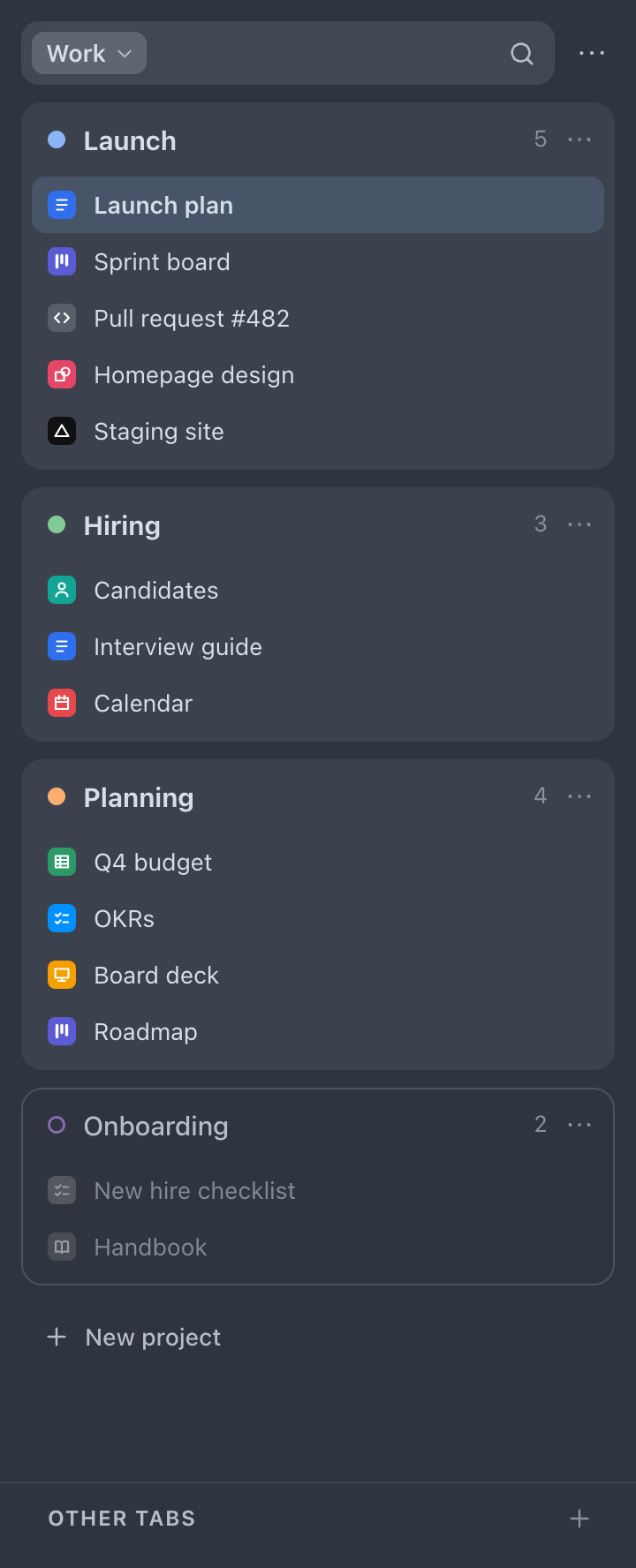
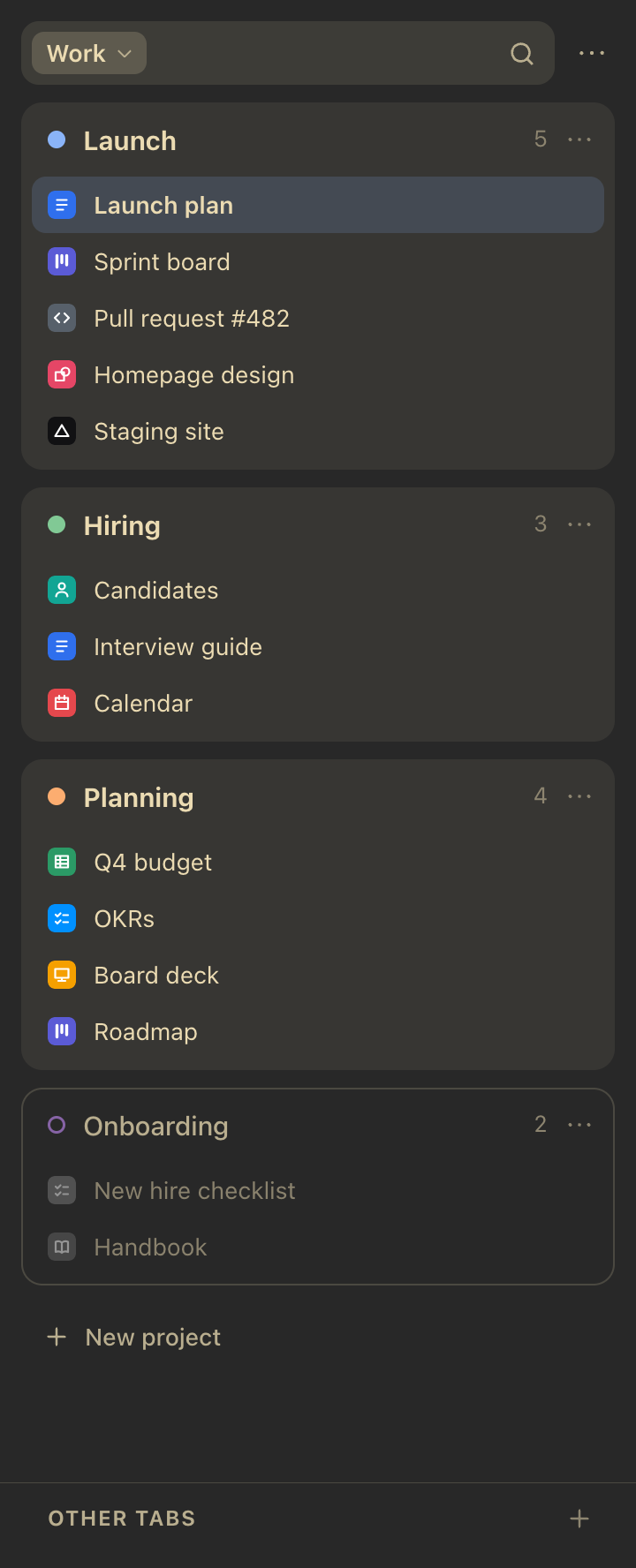
Hundreds of color schemes, from the collection terminals use: Catppuccin, Dracula, Nord, Gruvbox, Solarized, TokyoNight and many more. A theme colors every Index page: the panel, search, Rewind and Sleeping Tabs. The theme page is a searchable grid, each tile drawn in its own colors; tapping one puts it on at once, with Undo. Auto follows the system's light or dark setting.
Rewind.
Rewind is off until you turn it on. On, Index keeps a record of changes to your spaces and groups on this computer: names, colors, the titles and addresses of links, including ones since removed. It keeps a week of changes by default, or from ten minutes to a month, your choice. Older changes are dropped.
The Rewind page shows the record as a timeline to scrub through, with the state at the chosen moment drawn under it the way the panel draws it. From any moment it can put back a group, a space or everything as it was then, and a restore can be undone. Before a big restore, the page shows what would change beside what there is now, to look over first.
The record can also be copied to a folder of your choosing, iCloud Drive say, and kept up to date as it changes, and a folder's record can be read on the page, so another computer's record can be looked at. The record is never synced. Clearing it, or turning Rewind off, deletes it and the files this computer wrote to the folder.

Sync, storage and privacy.
Index collects nothing: no account, no server, no analytics, no network requests, no remote code. Nobody, its author included, receives anything from it, and nothing is read from the pages you visit. It needs no host permissions; the one optional permission, bookmarks, is asked for only when you choose Add from bookmarks.
Spaces, groups, their links, the favorites and your theme are kept in Chrome's synced extension storage. With Chrome sync on they follow you between your own computers through your Google account, the way bookmarks do, and changes made on another computer arrive while Index runs. That storage holds about 100 KB in total, several hundred links across all groups; the … menu shows how much is used, and Index says so when it is full. Which groups are open in which window, and where each link's tab has got to, stay on each computer, and so do Rewind's record and Sleep's counts.
Index runs per Chrome profile. Install it in each profile you use and every one gets its own spaces, favorites and sync, with Chrome's own separation of cookies, passwords and extensions around it.
To delete your data, delete your spaces in Index; removing the extension removes what it stored on that computer. The privacy policy has the rest.
Free. Chrome 142 or newer.